
The flow
Someone shares a photo in a WhatsApp group. It reaches your linked ChatRail connection, which posts a message.received event to n8n. n8n keeps the images, asks ChatRail for the bytes, and drops the file into a dated folder in your cloud storage. Four moving parts:
- 01Webhook in
message.receivedarrives with akindand, for a photo, amedia.download_url. - 02Filter
Continue only for images; a text reply has no file to save.
- 03Download
Fetch the bytes from ChatRail with your API key.
- 04Upload
Write the file to Google Drive or Dropbox.
The download step is the one that matters: the webhook carries a reference, not the photo. ChatRail streams the file back through an authenticated endpoint, so the transport's own URL is never exposed.
Register the webhook
Add a Webhook node in n8n, set the method to POST, and copy its Production URL. Register that URL with ChatRail for the message.received event, with an API key that has webhooks:write. With more than one number (Team, or an extra number), add "connection": "main" so only that number feeds this workflow.
curl -X POST https://www.chatrail.dev/v1/webhook-endpoints \
  -H "Authorization: Bearer $CHATRAIL_API_KEY" \
  -H "Content-Type: application/json" \
  -d '{
    "url": "https://your-n8n-host/webhook/whatsapp-images",
    "events": ["message.received"],
    "description": "WhatsApp images to cloud storage"
}'ChatRail signs every delivery with chatrail-signature over the raw body. For a hardened setup, verify it in a Code node before acting — see the webhook events reference. At minimum, keep the Production URL secret.
Import the workflow
Rather than building the nodes by hand, import a ready-made copy and swap in your credentials. Pick the destination you use:
In n8n, open Workflows → Import from File and choose the JSON. Each node that needs a credential is flagged; the next steps fill them in.
Connect ChatRail
The Download Image node is an HTTP Request authenticated with your ChatRail API key. Create an HTTP Bearer credential holding a key with the messages:read scope, and attach it to that node. The URL resolves the webhook's download_url against the API base, and the response is read as a file:
{{ "https://www.chatrail.dev" + $("WhatsApp Webhook").first().json.body.data.media.download_url }}n8n wraps the posted event under body, so the media reference is at body.data.media.download_url. Set Response → Format to File so the bytes arrive as binary for the upload step. The key lives only in the n8n credential, never in a node parameter.
Filter to the images you want
The imported workflow already drops anything that is not an image, using the kind on the event. That stops a text reply from reaching a download with no file:
{{ $json.body.data.kind }}   equals   image
{{ $json.body.data.media.download_url }}   exists
To narrow it to a single group, add one more condition on the group id. Every inbound event from a group carries it as from.group, and it is the same id the groups endpoint returns:
{{ $json.body.data.from.group }} equals 120363021234567890@g.usUpload to Google Drive
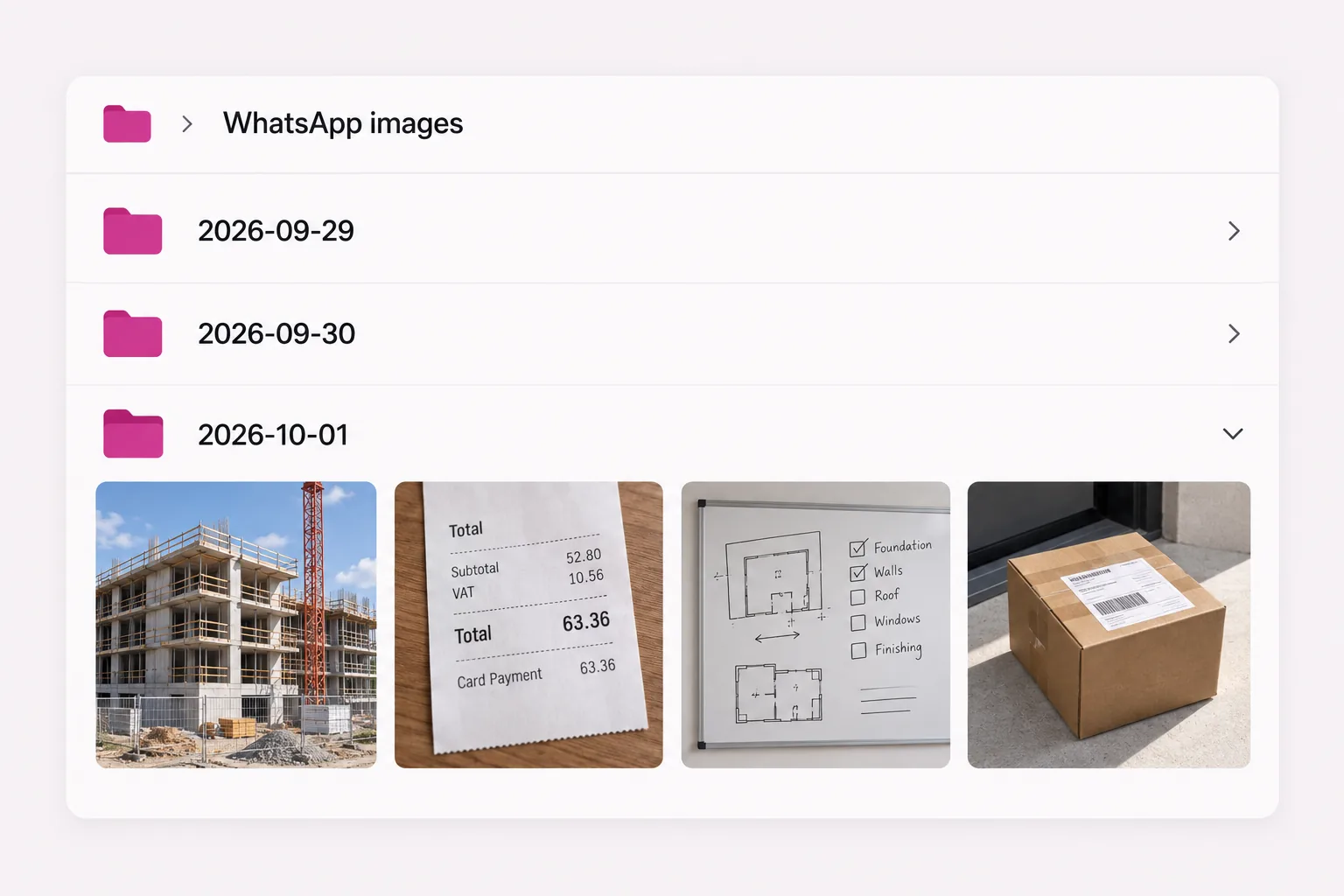
The Drive workflow builds a dated folder name, finds it in your Drive root, creates it the first time each day, then uploads the downloaded file into it. The folder lookup uses alwaysOutputData so a missing folder is a branch, not an error, and the two branches merge before the upload:
- Prepare sets
folderName(WhatsApp images 2026-09-22) andfileName. - Find Daily Folder → Folder Exists? resolves the folder, creating it on the false branch.
- Upload to Drive writes the binary from the download step into that folder.
Connect a Google Drive OAuth2 credential to the three Drive nodes and you are done.
Or upload to Dropbox
Dropbox creates folders from the upload path, so the Dropbox workflow is shorter — there is no find-or-create step. Prepare builds a full destination path and the Dropbox node writes to it:
=/WhatsApp images/{{ $now.toFormat('yyyy-MM-dd') }}/whatsapp-{{ $now.toFormat('yyyyMMdd-HHmmss') }}.jpgAttach a Dropbox OAuth2 credential to Upload to Dropbox, keep the same ChatRail Bearer credential on the download node, and the rest is identical to the Drive version.
Test it end to end
Activate the workflow and send a photo to the WhatsApp group on the linked number. Within a second or two n8n runs: the event is filtered to an image, the file is fetched from ChatRail, and it appears in that day's folder. Send a plain text reply too — it should be filtered out and never reach the download.
If a photo arrives with download_url set to null, the transport reported a file it will not serve. The Only Images filter already skips it, so the run ends cleanly rather than failing on an empty download.